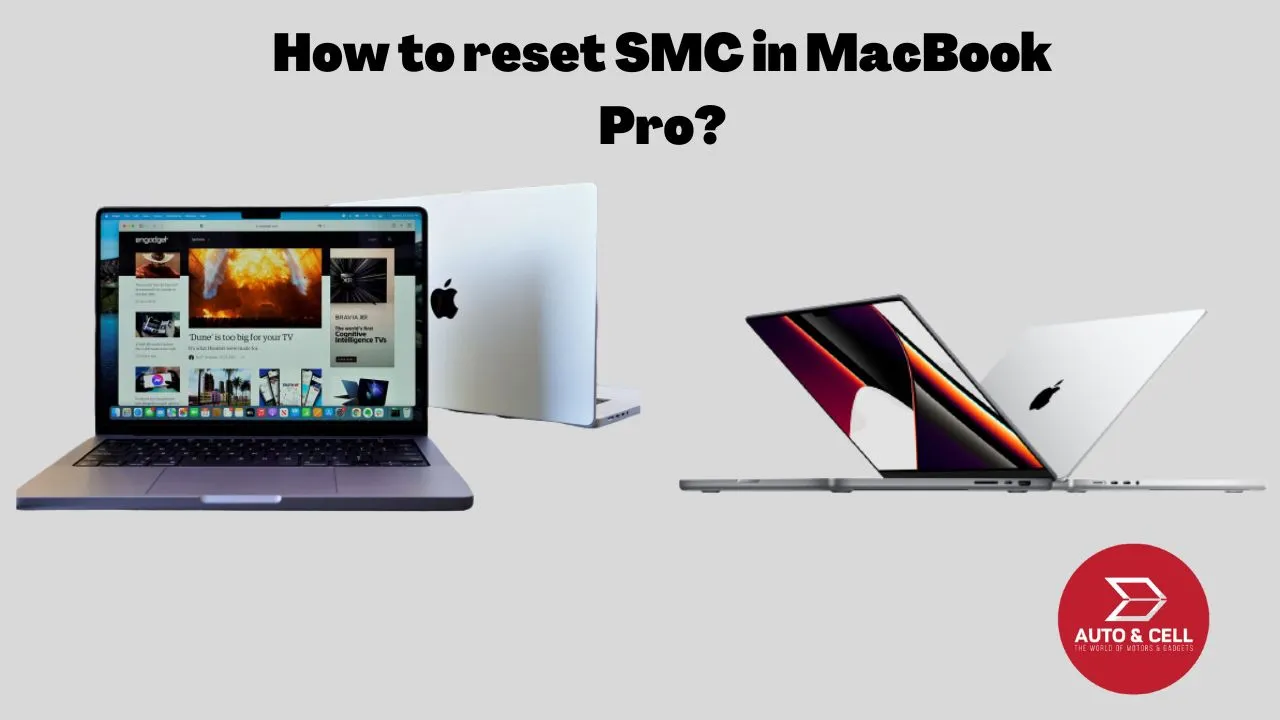
Today we are going to discuss how the SMC (System Management Controller) can be reset in a MacBook Pro. So first of all let’s start with what does SMC stand for, what is it use for and then when to know you have to reset your Laptop comprising a full guide for you.
What is SMC?
SMC known as System Management Controller is responsible for low level functions on Intel based Mac computers and also is responsible for the following:
- Battery Management
- Thermal Management
- Sudden Motion Sensor (SMS)
- Ambient Light Sensor
- Keyboard Backlighting
- Battery status indicator lights
- Responds to the presses of the power button and display lid opening and closing on Mac notebooks
- Others
A symptom that means an SMC reset is necessary:
- Fan runs at high speed even though the performance is good
- Doesn’t respond properly when you open or close the lid
- Battery does not charge properly
- When your device does not recognize the external devices that are connected
- No response while pressing the power button
- Error in status indication light
- Performs unusually slow
- Backlight does not response correctly while changing the colors
- Error in indicating correct charging activity
- When in charge it does not take the charge from the built in USB port
Note: Other are also there but these are main things to be taken care of if your computer shows these errors or mistakes.
Image Credit-nofilmschool
How to reset SMC:
Firstly to reset the SMC in MacBook, check whether the battery is removable or not due to the old ones are removable while the new models comes with non-removable battery.
If the battery is Removable:
- Power off your Mac
- Take out the battery
- Press and hold the power button for 5-10seconds
- Put the battery back
- Turn on your Mac.
If the battery is non-removable:
- Shut down your Mac
- After shutting down, press Shift-Control-Option on the left side of the keyboard and then press the power button at the same time
- Hold the power button for 10-15seconds
- In case of MacBook Pro Touch ID button is also the power button
- After that release all the keys
- Turn on your Mac ready to use.
Resetting SMC MacBook Pro with T2 Chip:
- Shut down the Mac
- Press Control + Option + Shift that is on the left side for the two and right side for the last (Shift)
- After holding the keys for 10seconds then press and hold the power button along with the three keys that you press
- Wait for few seconds and then press and release the power button to turn on your Mac
Conclusion:
So there are various ways by which we can reset the SMC and according to Models it varies. Hope you find this article helpful and as you may be interested in the other news like:
iPhone 14 huge front camera upgrade
m2 MacBooks specifications and expected price
Join us on Facebook for having insights on the latest updates on automobiles and gadgets: Autoncell
Also, follow us on our other Social Media Handles:
Twitter
YouTube
Instagram