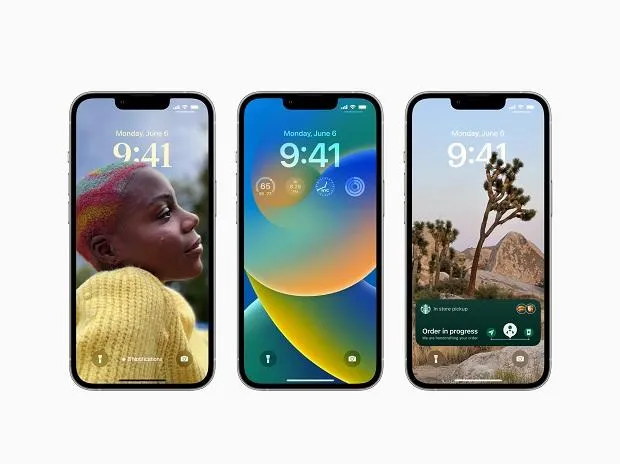
The iOS 16 update is now trickling out to iPhones all across the world after months of previews and betas. Once it is securely installed on your device, you'll want to learn more about the new capabilities that are now available to you.
Several bug fixes, security upgrades, and a few new features—including Live Activities and iCloud Shared Photo Library—and even a redesign of the battery meter symbol in the status bar is included in the most recent release. But those are only the start of the new features that iOS 16 has to offer.
You'll be happy to find that the iPhone has some new unseen functions that could drastically alter the way you use it. We've chosen 16 of our favorites that can change how you use your iPhone, ranging in importance from significant to minor. Here are the lists:
Support with Switch Controller
You'll have more choices while playing games now that iOS 16 officially supports several new Bluetooth game controllers, including Nintendo Switch Joy-Cons and Pro Controllers. Additionally, tvOS and iPadOS are also supported.
Photos locked folders
The Hidden and Recently Deleted folders in Photos are now locked by default to increase privacy and prevent unauthorized discovery. You can access them by using your iPhone's login information (Face ID, Touch ID, or passcode).
Notifications from SharePlay
Apple automatically disables alerts when you share your screen, making them invisible to anyone seeing it. This is a rare problem. You now have more options thanks to the new Screen Sharing option in the Notifications settings, which has a toggle to allow notifications while using SharePlay or Screen Mirroring.
 Image Credit-tomsguide
Photo duplication detection
A new Duplicates option in Utilities can be found in the Albums view of the Photos app. It automatically detects identical photographs and allows you to blend them, and add captions, keywords, and favorites to the duplicate image with the best quality. So you may now maintain a little more order in your photo library.
Layouts for lock screen notifications
There are more options than receiving notifications in a stack on Apple's snazzy new lock screen. If you want to see them all blocking your lovely lock screen as they used to, you may switch to list view. If you want to keep things highly organized, you can set it to a single banner with a counter.
Additional Siri offline features
Speaking of Siri, it can now accomplish even more things offline than before if you have an iPhone 12 or higher. The majority of intercom, voicemail, and home control features work without sending data to Apple.
To communicate with your HomeKit hub, for instance, you need a network connection, but all processing is done entirely on your iPhone and is only allowed on your home network.
The Wi-Fi passwords you have
The plain text passwords for your saved Wi-Fi networks are finally visible with iOS 16! Then, if required, you may quickly copy it to the clipboard for sharing in the manner of your choice. For a buddy who lacks access to the normal seamless Apple Wi-Fi sharing, simply see it and have they read it aloud. Open Settings, and then select Wi-Fi.
To acquire the password for a Wi-Fi network, tap the info button next to it. This will bring up a screen with numerous options and details. When you hit the Password field, dots will appear in place of the password, but your iPhone will authenticate you using Touch ID or Face ID and then display the password in plain form with the option to Copy it if you'd like.
 Image Credit-macrumors
Hang up from Siri
Siri is capable of many things. The virtual assistant may be used to send text messages, seek directions, or play music, but she is unable to conclude phone calls. Odd, “yeah? With iOS 16, that is finally a possibility. Make sure Listen for "Hey Siri" is toggled on in Settings by going to Siri & Search.
If it is, a new option labeled Call Hang Up should appear underneath. Enter that menu item and turn on Call Hang Up. You can ask Siri to end a call when you're on a phone call or FaceTime video chat by saying, "Hey, Siri."
Enhanced portrait blur
You'll noticeably get better blur with an iPhone 13 or iPhone 13 Pro in a few key ways. In portrait photographs, the foreground—the area in front of the subject—will blur.
Additionally, the depth-of-field effect is more accurate in films shot in cinematic mode when it comes to objects like hair and glasses. We continue to be in awe of the automatic cutouts it performs on lock screen images.
Delete more Apple programs
Since iOS 10, Apple has given us the option to delete some of its pre-installed apps, and with iOS 16, it has added three more: Find My, Clock, and Health. While some Apple Watch functionalities may be impacted, some built-in Find My features will still function, according to Apple.
Some other features are as follows:
Portrait Face ID
Face ID has only functioned in portrait mode since the iPhone X, making it challenging to use if you were holding your phone in an awkward position. With iOS 16, it is no longer the case. Nothing needs to be turned on, however, it only functions with an iPhone 13 or 14.
Support for haptic keyboards
It will feel a little more natural to tap the glass now that the built-in iOS 16 keyboard offers an option for haptic feedback while you type—without those obnoxious keyboard clicks. Unfortunately, it doesn't seem to be on the way to the iPad just yet.
Don't let calls ring off the hook.
Apple offers a fix in iOS 16 if you've ever inadvertently ended a call by pressing the power button. Select Prevent Lock to End Call under Settings, Accessibility > Touch, and then Settings. Your calls will now only stop if you touch the End call button or if the caller hangs up on you.
 Image Credit-macrumors
iCloud + upgrades
In iOS 16, the iCloud+ options like Hide My Email and custom email domain become a little more practical. Since Hide My Email is directly integrated into QuickType's keyboard suggestions, it should always be accessible in outside applications.
And people outside of your Family Sharing group can use your personalized domain. You can buy a brand-new domain or activate the catch-all aliases directly from the iCloud Mail settings.
Quick settings for Airpods
In iOS 16, Apple has offered us a simpler way to manage our Airpods along with customizable Spatial Audio. When your AirPods are paired, a new tab will appear under your iCloud name in Settings. You can tap it to go directly to your earbuds' settings.
Enhanced Memoji
Additionally, iOS 16 offers several significant upgrades for them. There are more sticker postures, and you can use any of the sticker poses as your contact image. There are also more headgear, more noses, and more subdued lip tints, in addition to the 17 new and revised haircuts. Making your Memoji fit your look and style and ought to be simpler than ever.
Conclusion
Apple upgrades its operating systems each year with new features, some of which are added as part of routine updates. Sometimes updates are made to iOS to modernize or improve current features. Others provide brand-new components to the operating system for the first time, expanding the choices and approaches to utilize the iPhone to its full potential.
The iOS 16 update brings a wide range of improvements and additions, even though it is not a complete rewrite like some previous iPhone software versions. One of the largest feature enhancements in the history of Apple's mobile operating system can be seen in the upcoming iOS 16.
>>>You May Also Like-iPhone 15 Pro Can be Buttonless click for more<<<
>>>How to Add YouTube Widget in your iPhone home screen<<<
>>>10 Reasons to Buy iPhone 14 series in 2022<<<
-original.webp)
-original.webp)
-original.webp)
-original.webp)